
Resolve Bandwidth Limit Errors in DirectAdmin : Bandwidth limit errors are a common issue for hosting accounts in DirectAdmin. These errors usually occur when an account exceeds its assigned bandwidth quota, causing websites to go offline or display warnings. In this guide, we’ll walk you through how to troubleshoot and resolve these errors effectively.
Resolve Bandwidth Limit Errors in DirectAdmin
Table of Contents
1. Verify the Bandwidth Usage
The first step is to confirm whether the account has exceeded its bandwidth limit.
- Navigate to Account Manager > Users.
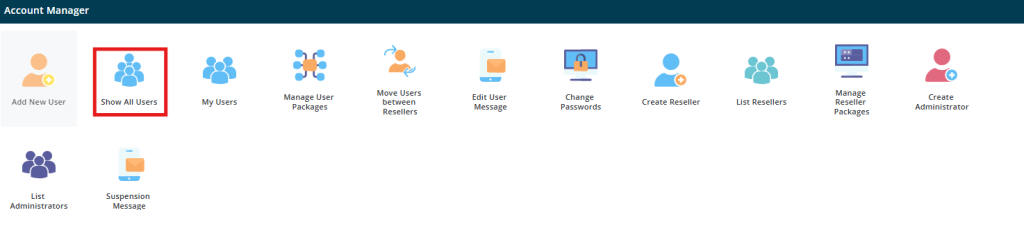
- Select the user account in question and check its bandwidth usage.
If the bandwidth limit is indeed exceeded, proceed to the next steps.
2. Increase the Bandwidth Limit
You can temporarily fix the issue by increasing the bandwidth allocation for the account:
- Go to Account Manager > Modify User Account.
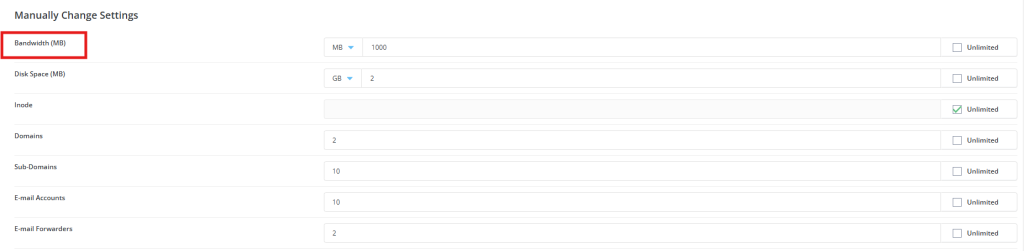
- Adjust the bandwidth quota to a higher limit.
- Save the changes.
This will restore access to the website, but it’s important to investigate what caused the excess usage.
3. Analyze Bandwidth Consumption
DirectAdmin provides tools to identify what’s using the most bandwidth.
- Navigate to Account Manager > Bandwidth Data.
- Review usage by category (e.g., HTTP traffic, emails, FTP).
- Look for unusual spikes or patterns in bandwidth consumption.
4. Optimize Bandwidth Usage
To prevent future bandwidth issues, consider optimizing the account’s usage:
- Compress Website Assets: Use tools like Gzip to compress images, CSS, and JavaScript files.
- Enable Caching: Implement server-side or browser caching to reduce repetitive server requests.
- Limit Email Attachments: Restrict large email attachments that consume significant bandwidth.
5. Check for Unusual Activity
Bandwidth overages can sometimes result from malicious activity, such as DDoS attacks or unauthorized access.
- Review logs under Admin Tools > Log Viewer for abnormal traffic patterns.
- Block suspicious IPs using the Firewall Settings or a plugin like CSF (ConfigServer Security & Firewall).
6. Set Up Alerts for Bandwidth Usage
Prevent future issues by enabling bandwidth notifications:
- Go to Admin Settings > Notification Settings.
- Configure alerts to notify you when an account approaches its bandwidth limit.
This will give you enough time to take corrective action before services are disrupted.
7. Consider Upgrading Hosting Plans
If the bandwidth issue is recurring due to genuine usage growth:
- Offer the user an upgraded plan with higher or unlimited bandwidth.
- Revise your hosting packages to better match user needs.
Conclusion
Bandwidth limit errors in DirectAdmin can be frustrating, but they’re easily manageable with proper monitoring and optimization. By increasing limits temporarily, analyzing usage, and taking preventive measures, you can ensure smooth website performance and avoid future disruptions.
Stay proactive by keeping an eye on bandwidth trends, optimizing website performance, and securing accounts against unusual activity.